动起来,加入动画

目前我们的整个场景还是静态的,接下来我们会加入一些动画让其丰富起来。这里要使用帧动画资源,让我们先创建一个资源目录,在其下创建一个json文件:

{
  "keyframe": {
    "plane": {
      "0": {
        "rotation.y": 0,
        "material.u_baseColorFactor": [0.2, 0.6, 0.8, 1]
      },
      "50": {
        "material.u_baseColorFactor": [0.2, 0.8, 0.6, 1]
      },
      "100": {
        "rotation.y": 6.28,
        "material.u_baseColorFactor": [0.2, 0.6, 0.8, 1]
      }
    },
    "cube": {
      "0": {
        "position": [-1, 0, 0]
      },
      "25": {
        "position": [-1, 1, 0]
      },
      "50": {
        "position": [1, 1, 0]
      },
      "75": {
        "position": [1, 0, 0]
      }
    }
  },
  "animation": {
    "plane": {
      "keyframe": "plane",
      "duration": 4,
      "ease": "ease-in-out",
      "loop": -1
    },
    "cube": {
      "keyframe": "cube",
      "duration": 4,
      "ease": "steps",
      "loop": -1,
      "direction": "both"
    }
  }
}

然后加载它,并引用到场上的两个物体中:

<xr-asset-load asset-id="anim" type="keyframe" src="/assets/animation.json"/>

<xr-mesh
  node-id="cube" cast-shadow anim-keyframe="anim" anim-autoplay="clip:cube,speed:2"
  geometry="cube" uniforms="u_baseColorMap: waifu,u_metallicRoughnessValues:1 0.1"
/>
<xr-mesh
  node-id="plane" position="0 -1 0" scale="4 1 4" receive-shadow anim-keyframe="anim" anim-autoplay="clip:plane"
  geometry="plane" uniforms="u_baseColorMap: {{avatarTextureId}}"
/>

<xr-camera
  position="0 1 6" target="plane" background="skybox"
  clear-color="0.4 0.8 0.6 1" camera-orbit-control
/>

这里我们将xr-camera的target设置到了plane上,以防其跟随cube乱动。

注意因为是包内的json文件,所以需要在project.config.json的setting字段中增加 "ignoreDevUnusedFiles": false和"ignoreUploadUnusedFiles": false配置参数! 效果如下:

让场景更丰富,环境数据

物体有了纹理,那么背景能不能也有纹理呢?当然可以。我们提供了环境元素xr-env来定义环境信息,配合以相机可以渲染天空盒,这里以微信小程序框架内置的一个环境数据xr-frame-team-workspace-day为例:

<xr-env env-data="xr-frame-team-workspace-day" />

<xr-mesh
  node-id="cube" cast-shadow
  geometry="cube" uniforms="u_baseColorMap: waifu,u_metallicRoughnessValues:1 0.1"
/>

<xr-camera
  position="0 1 4" target="cube" background="skybox"
  clear-color="0.4 0.8 0.6 1" camera-orbit-control
/>

这里我们将xr-camera的backgournd设置为了skybox,同时调整了立方体的金属粗糙度,效果如下:

同时可以看到场景中的物体相机叠加了一层反射,就像是被环境影响了一样,这是因为环境数据里还包括一些IBL的信息,当然这个我们不在这里赘述了,有兴趣的可以详细阅读后面的章节。

天空盒除了图像,还支持视频,我们可以先加载一个视频纹理,然后覆盖掉环境信息中的sky-map:

<xr-asset-load type="video-texture" asset-id="office" src="https://mmbizwxaminiprogram-1258344707.cos.ap-guangzhou.myqcloud.com/xr-frame/demo/videos/office-skybox.mp4" options="autoPlay:true,loop:true" />

<xr-env env-data="xr-frame-team-workspace-day" sky-map="video-office" />

效果如下:

同时除了这种天空盒,我们还支持2D背景,这个在做一些商品展示的时候会比较有用:

<xr-asset-load type="texture" asset-id="weakme" src="https://mmbizwxaminiprogram-1258344707.cos.ap-guangzhou.myqcloud.com/xr-frame/demo/weakme.jpg" />

<xr-env env-data="xr-frame-team-workspace-day" sky-map="weakme" is-sky2d />

效果如下:

有点寡淡,加上图像

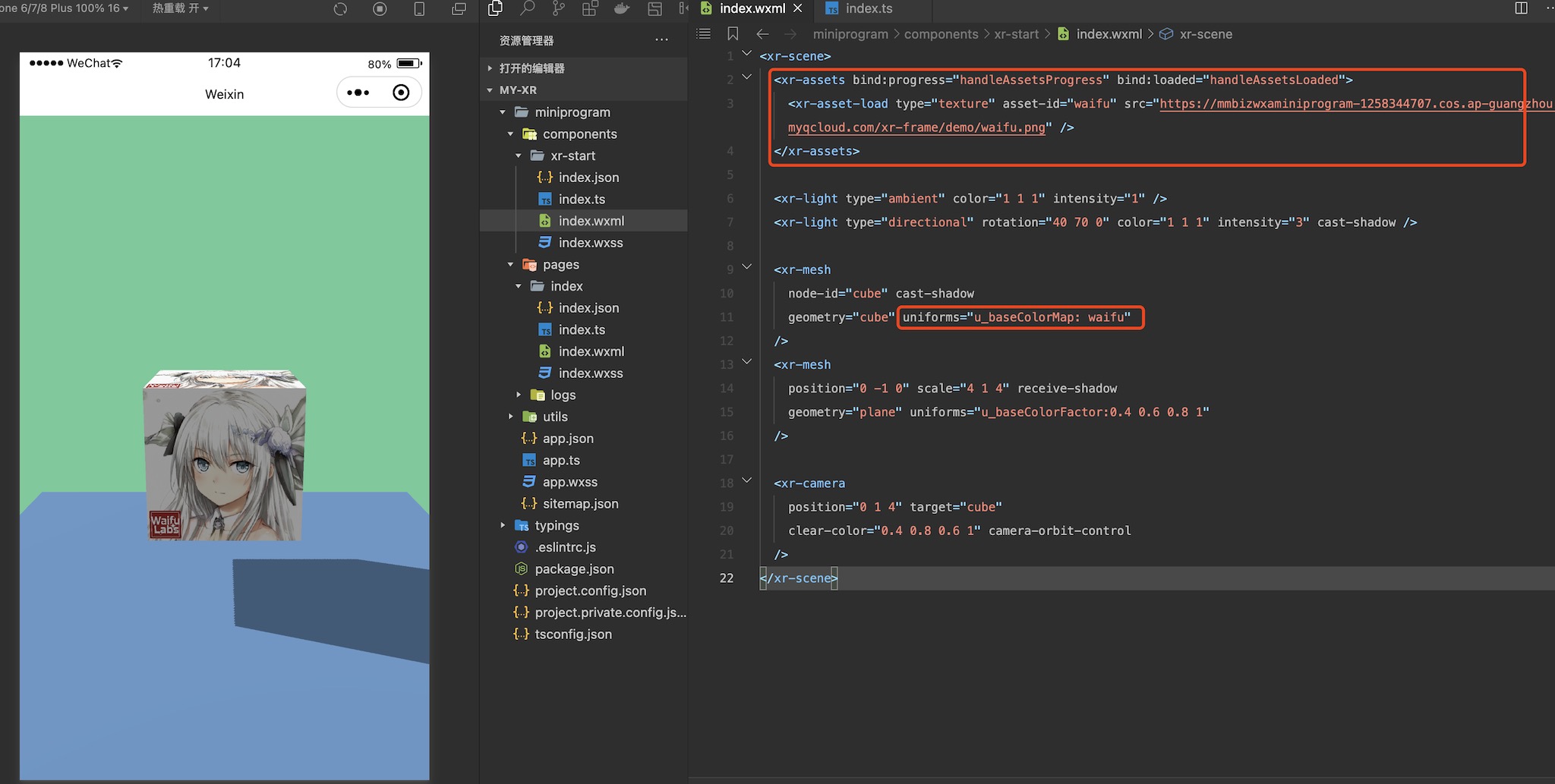
虽然有了灯光,但只有纯色还是有一些寡淡,接下来我们尝试加入纹理,让场景的色彩更加丰富一些,这里需要用到资源加载器xr-asset-load和xr-assets:

<xr-assets bind:progress="handleAssetsProgress" bind:loaded="handleAssetsLoaded">
  <xr-asset-load type="texture" asset-id="waifu" src="https://mmbizwxaminiprogram-1258344707.cos.ap-guangzhou.myqcloud.com/xr-frame/demo/waifu.png" />
</xr-assets>

<xr-mesh
  node-id="cube" cast-shadow
  geometry="cube" uniforms="u_baseColorMap: waifu"
/>

注意到我们在xr-assets上绑定了两个事件progress和loaded,这便于开发者监听资源加载进度,然后按需做一些操作,比如资源加载完成后和wx:if协作再显示物体。默认情况下,我们采用渐进式策略,当资源加载完成后会自动应用到物体上:

methods: {
  handleAssetsProgress: function ({detail}) {
    console.log('assets progress', detail.value);
  },
  handleAssetsLoaded: function ({detail}) {
    console.log('assets loaded', detail.value);
  }
}

这次的修改效果如下:

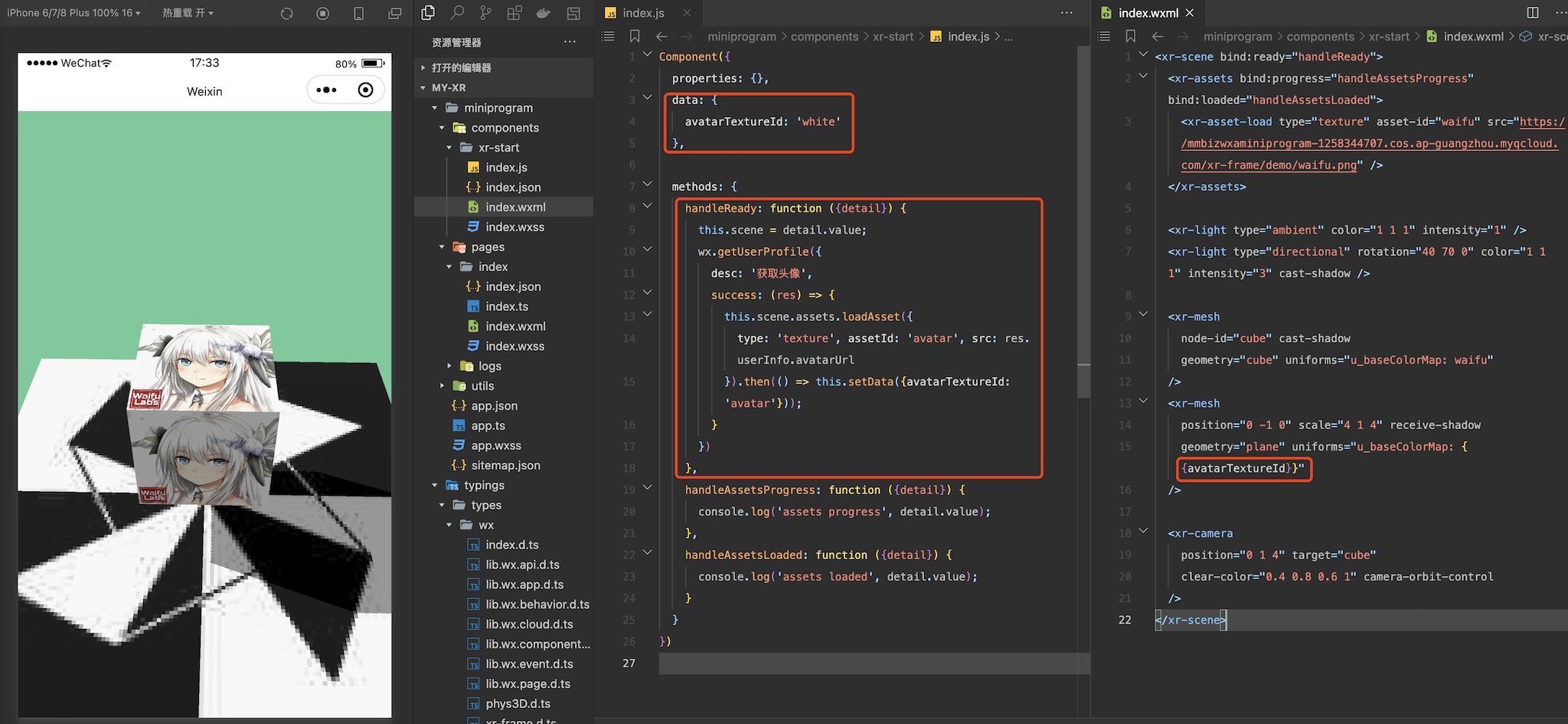
当然,我们还可以用代码动态加载一张纹理,然后将其设置到物体上,这里以获取用户信息的头像为例:

data: {
  avatarTextureId: 'white'
},

methods: {
  handleReady: function ({detail}) {
    this.scene = detail.value;
    // 该接口已废弃,请授权后,采用 getUserInfo 代替。
    wx.getUserProfile({
      desc: '获取头像',
      success: (res) => {
        this.scene.assets.loadAsset({
          type: 'texture', assetId: 'avatar', src: res.userInfo.avatarUrl
        }).then(() => this.setData({avatarTextureId: 'avatar'}));
      }
    })
  }
}

根据 微信小程序用户头像昵称获取规则调整公告 wx.getUserProfile 于 2022 年 10 月 25 日 24 时后,被废弃

注意这里的handleReady,我们可以在xr-scene上绑定bind:ready="handleReady"触发。完成头像获取后,将数据设置为uniforms的来源:

<xr-mesh
  position="0 -1 0" scale="4 1 4" receive-shadow
  geometry="plane" uniforms="u_baseColorMap: {{avatarTextureId}}"
/>

效果如下:

微信小程序颜色和灯光

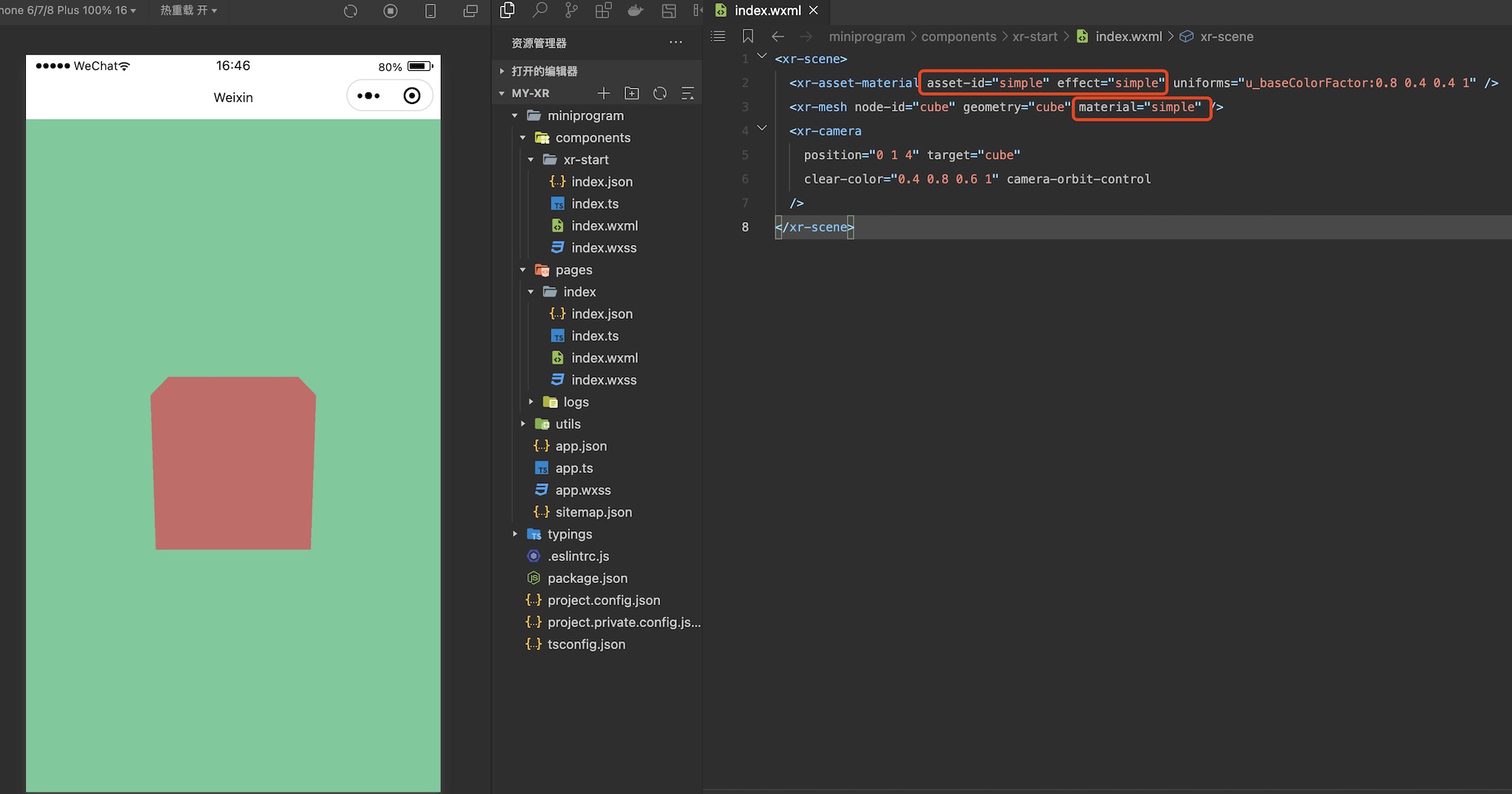
物体黑色是因为在我们没有给xr-mesh指定材质时,用的是基于PBR效果的默认材质,需要光照,解决这个问题有两种方法,其一是不需要光照的物体,可以使用simple材质,这里就引入了材质定义:

<xr-asset-material asset-id="simple" effect="simple" uniforms="u_baseColorFactor:0.8 0.4 0.4 1" />
<xr-mesh node-id="cube" geometry="cube" material="simple" />

效果如下:

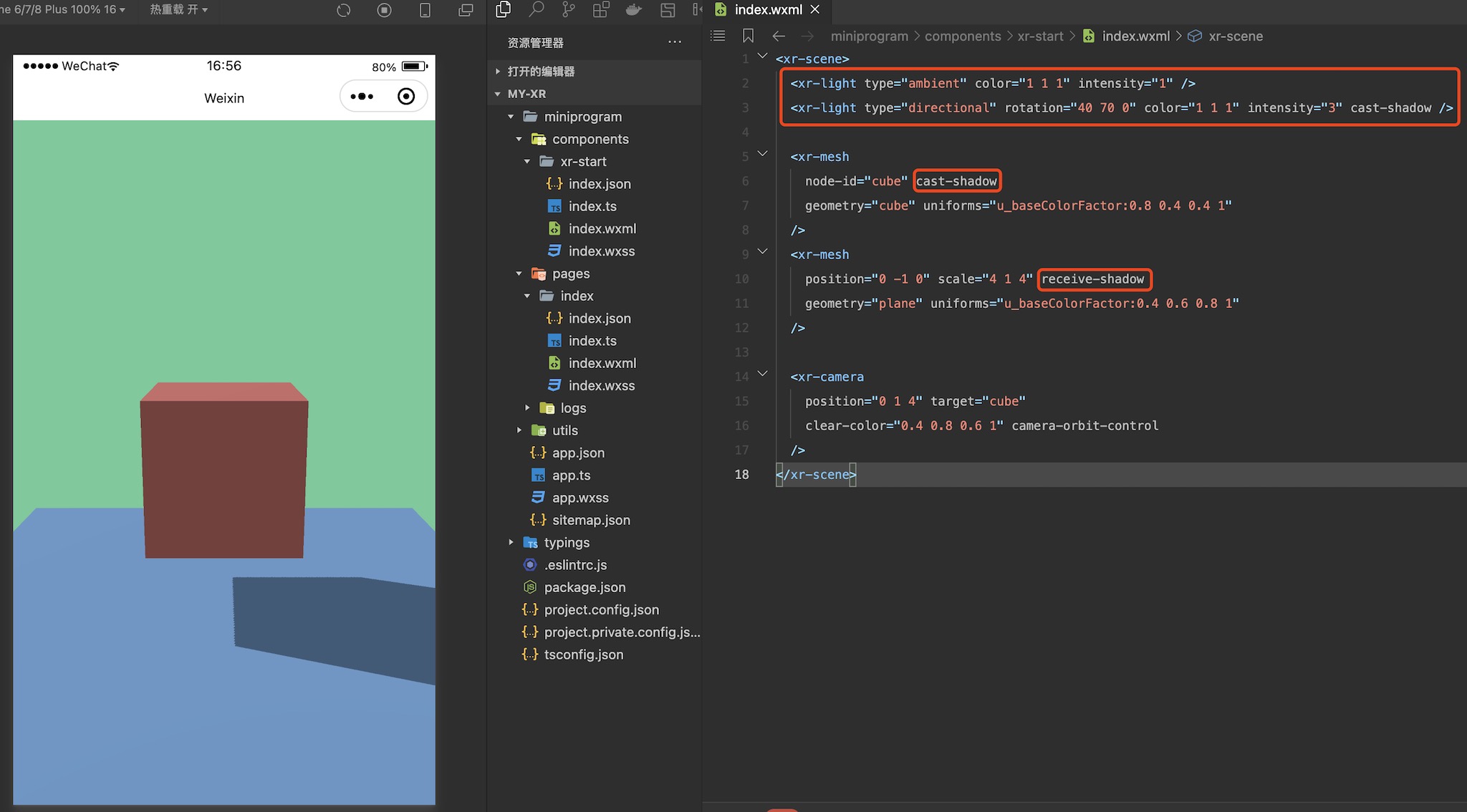
虽然这可以解决一些问题,但大部分情况下我们还是需要灯光的,就让我们把材质改回去,然后加上一些灯光吧:

<xr-light type="ambient" color="1 1 1" intensity="1" />
<xr-light type="directional" rotation="40 70 0" color="1 1 1" intensity="3" cast-shadow />

<xr-mesh
  node-id="cube" cast-shadow
  geometry="cube" uniforms="u_baseColorFactor:0.8 0.4 0.4 1"
/>
<xr-mesh
  position="0 -1 0" scale="4 1 4" receive-shadow
  geometry="plane" uniforms="u_baseColorFactor:0.4 0.6 0.8 1"
/>

这里我们加入了一个环境光和一个主平行光,调整了亮度和方向,同时加上了一个新的物体,再通过各个组件的caster-shadow和receive-shadow开启了阴影,效果如下:

添加一个物体

接下来我们给场上添加一个物体,直接使用xr-mesh以及内置的几何数据、材质,创建一个立方体:

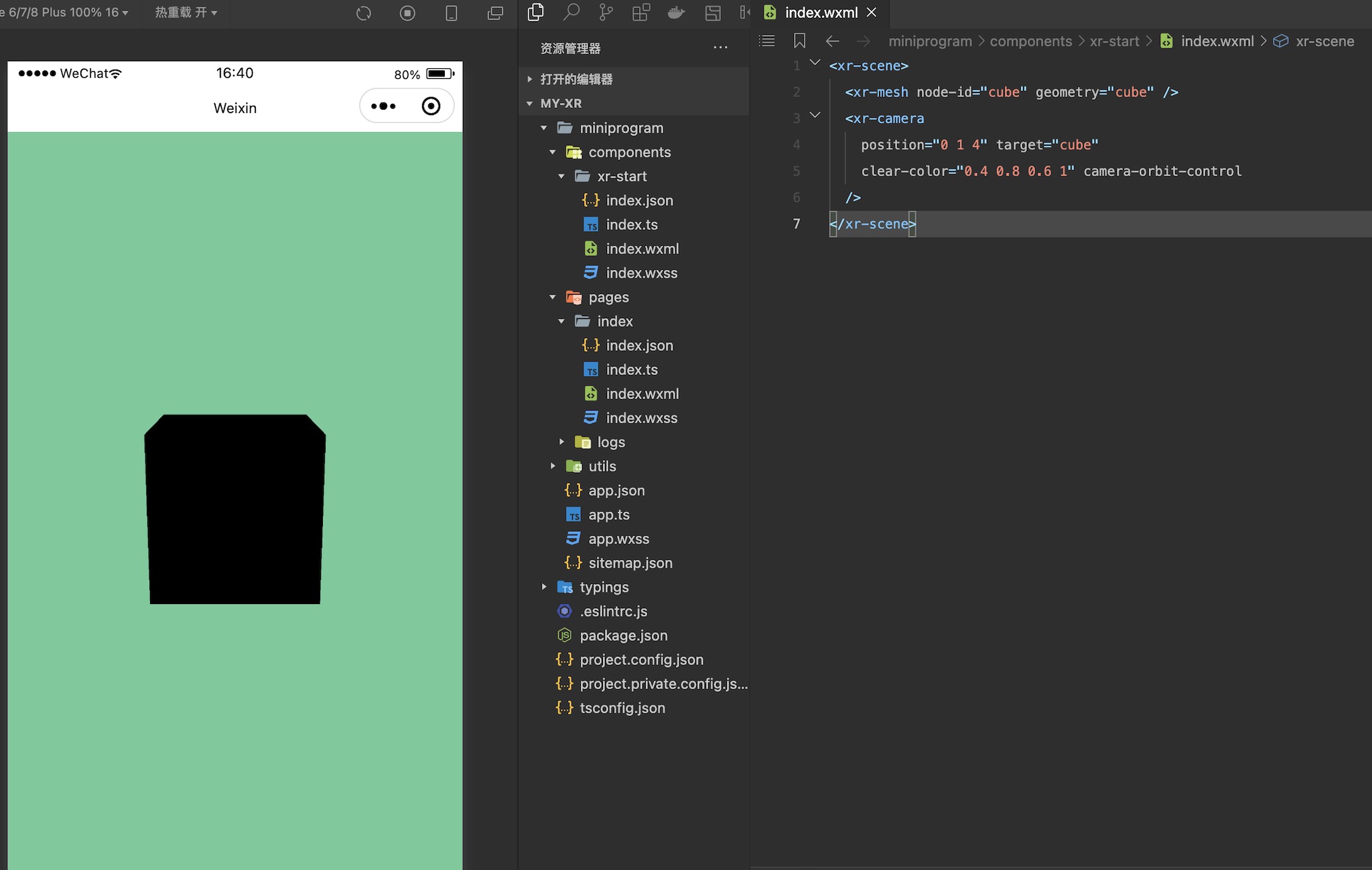
<xr-scene>
  <xr-mesh node-id="cube" geometry="cube" />
  <xr-camera clear-color="0.4 0.8 0.6 1" position="0 1 4" target="cube" camera-orbit-control />
</xr-scene>

这里我们给物体指定了一个node-id,作为节点的索引,之后修改xr-camera的position和target,让其始终看向这个立方体,最后再给相机加上camera-orbit-control属性,使得我们能对相机进行控制。

至此,一个立方体是渲染了出来,不过…为什么是黑色的?

在页面中使用这个组件

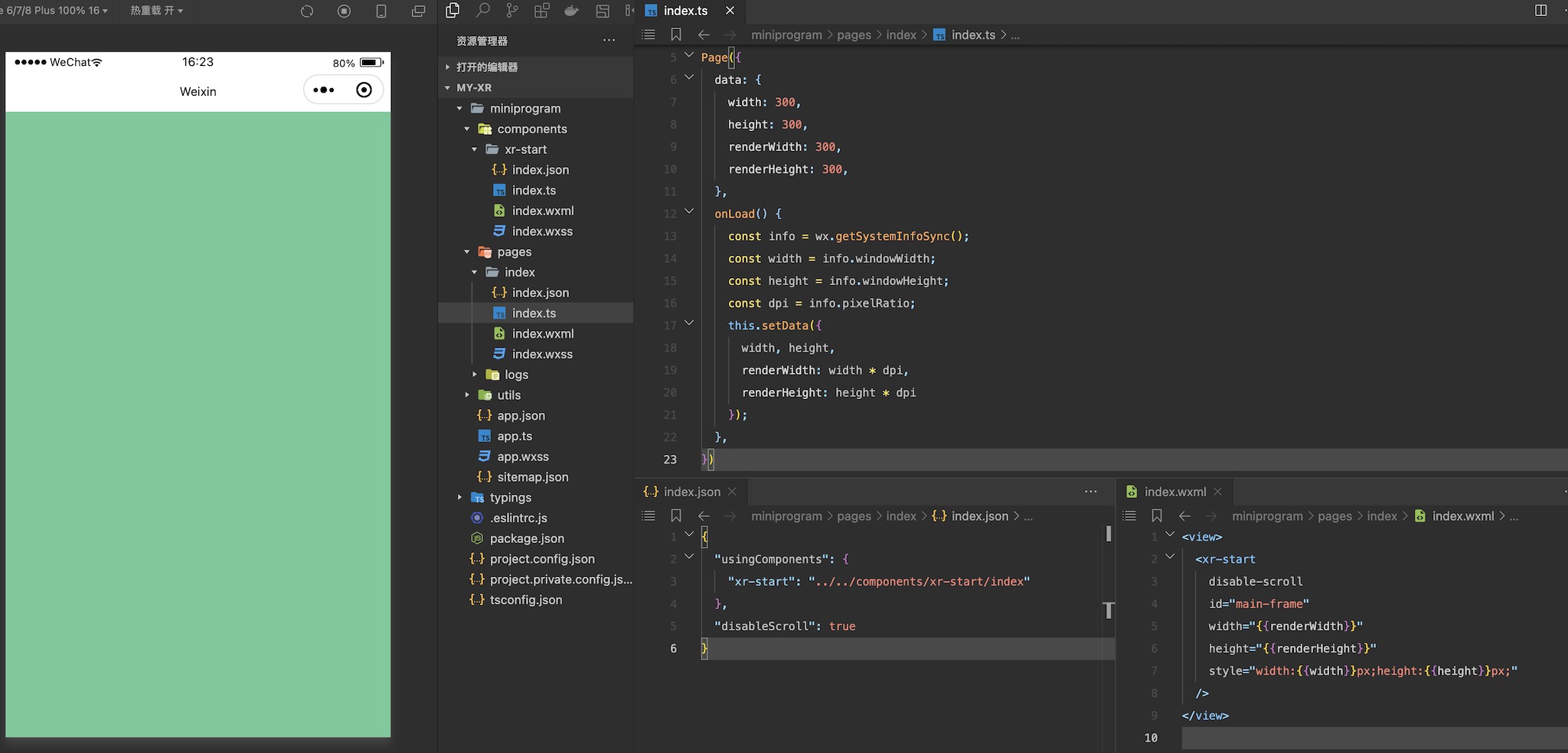
创建完组件后,便可以在页面中使用它,让我们进入pages/index,修改它的json、wxml和ts文件:

在json中:

{
  "usingComponents": {
    "xr-start": "../../components/xr-start/index"
  },
  "disableScroll": true
}

在ts脚本中:

Page({
  data: {
    width: 300,
    height: 300,
    renderWidth: 300,
    renderHeight: 300,
  },
  onLoad() {
    const info = wx.getSystemInfoSync();
    const width = info.windowWidth;
    const height = info.windowHeight;
    const dpi = info.pixelRatio;
    this.setData({
      width, height,
      renderWidth: width * dpi,
      renderHeight: height * dpi
    });
  },
})

在wxml中:

<view>
  <xr-start
    disable-scroll
    id="main-frame"
    width="{{renderWidth}}"
    height="{{renderHeight}}"
    style="width:{{width}}px;height:{{height}}px;"
  />
</view>

这里我们在脚本中设置了微信小程序xr-frame组件需要渲染的宽高,然后传入wxml,并在其中使用了json中引用的组件进行渲染,目前效果如下,可见整个画布被xr-camera上设置的清屏颜色清屏了:

新建一个XR组件

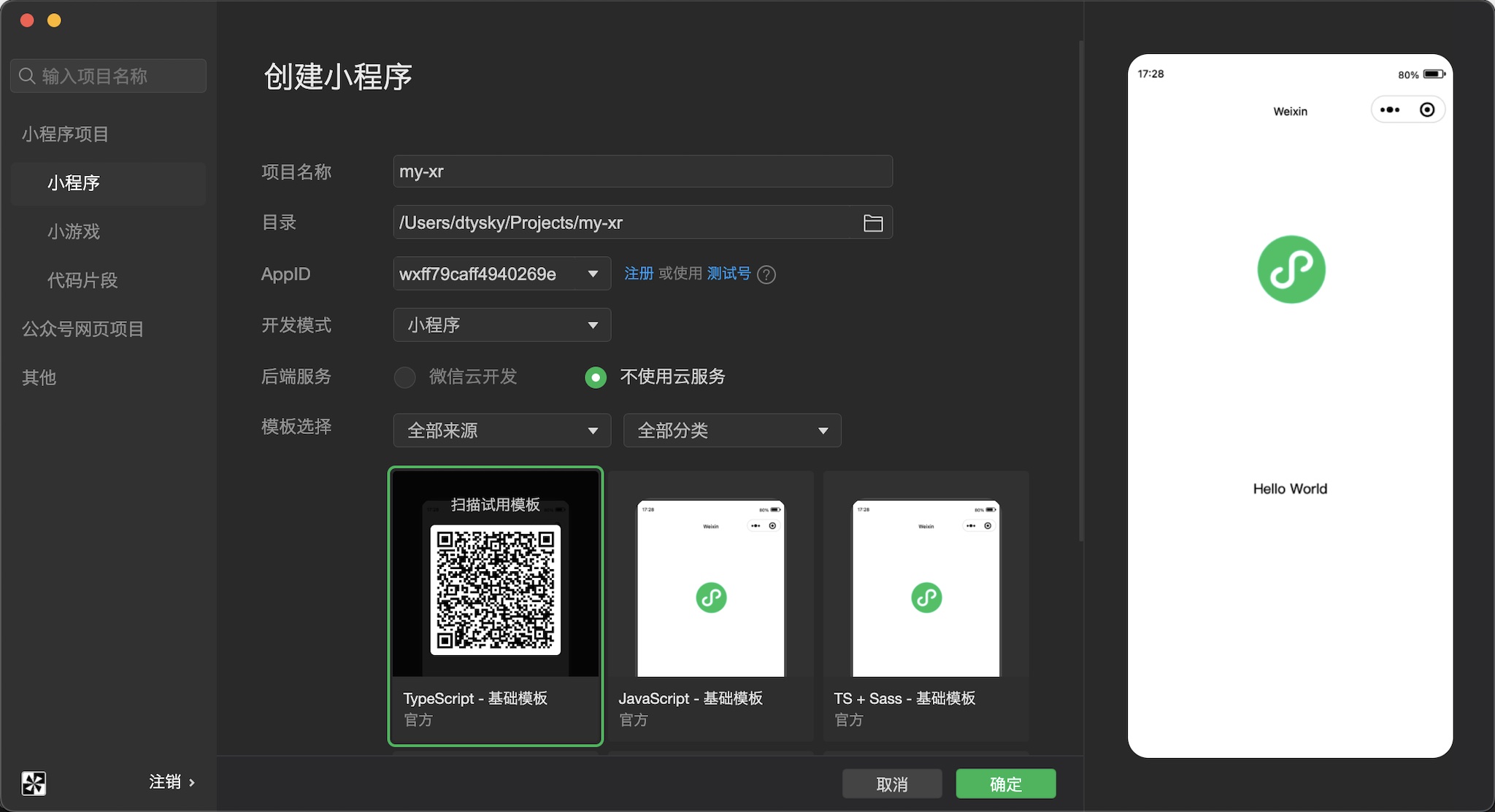
首先创建项目,让我们选择微信小程序工程:

之后先在app.json加上一行配置:"lazyCodeLoading": "requiredComponents"。然后创建好组件文件夹,新建一个组件,然后修改组件的内容:

index.json:

{
  "component": true,
  "renderer": "xr-frame",
  "usingComponents": {}
}

index.wxml:

<xr-scene>
  <xr-camera clear-color="0.4 0.8 0.6 1" />
</xr-scene>

在index.json中,我们指定了这个组件的渲染器是xr-frame;在index.wxml中,我们创建了一个场景xr-scene,并在其下添加了一个相机xr-camera。

深度估计

VisionKit 提供深度估计能力。

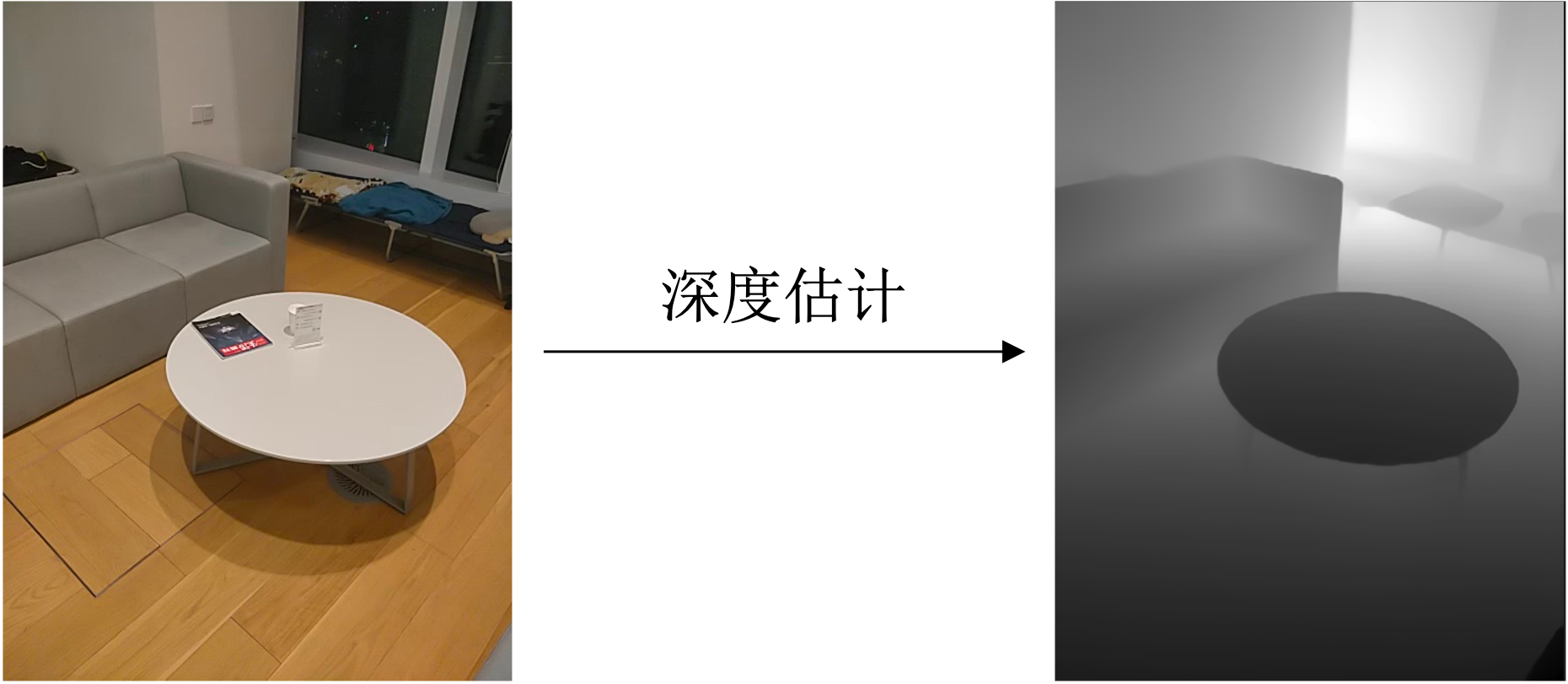
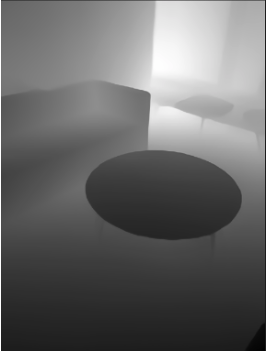
深度估计,就是获取图像中场景里的每个点到相机的距离信息,这种距离信息组成的图我们称之为深度图。

方法定义

我们在这里提供了深度估计的两种模式:

视觉模式: (安卓微信>=8.0.37,iOS微信>=8.0.38起) 使用摄像头进行深度估计 。

AR模式: (安卓微信>=8.0.38同时基础库>=2.33.0,iOS微信>=8.0.39同时基础库>=3.0.0) 使用摄像头和IMU进行深度估计,输出由near和far控制的非线性深度图,用于做虚实遮挡,目前支持部分机型,支持机型列表等同于6Dof-水平面AR-V2平面AR接口支持列表。

接口类型 精度 机型覆盖率
视觉模式 中 高
AR模式 高
中

视觉模式接口

深度估计视觉模式接口提供2种使用方法,一种是输入一张静态图片进行深度估计,另一种是通过摄像头进行实时深度估计。

  1. 静态图片估计

通过VKSession.detectDepth接口输入一张图像,然后通过VKSession.on接口监听深度图信息,图中像素的值代表当前的深度值,颜色越黑,代表距离摄像头越近,反之颜色越白,代表距离深度越远。

示例代码:


const session = wx.createVKSession({
  track: {
    depth: {
      mode: 2 // mode: 1 - 使用摄像头;2 - 手动传入图像
    },
  },
  gl: this.gl,
})
// 静态图片估计模式下,每调一次 detectDepth 接口就会触发一次 updateAnchors 事件
session.on('updateAnchors', anchors => {
  anchors.forEach(anchor => {
    console.log('anchor.depthArray', anchor.depthArray) // 深度图 ArrayBuffer 数据
    console.log('anchor.size', anchor.size) // 深度图大小,结果为数组[宽, 高]
  })
})

// 需要调用一次 start 以启动
session.start(errno => {
  if (errno) {
    // 如果失败,将返回 errno
  } else {
    // 否则,返回null,表示成功
    session.detectDepth({
      frameBuffer, // 待检测图片的ArrayBuffer 数据。待检测的深度图像RGBA数据, 
      width, // 图像宽度
      height, // 图像高度
    })
  }
})
  1. 通过摄像头实时估计

算法实时输出当前帧的深度图,每一帧像素的值代表当前的深度值,颜色越黑,代表距离摄像头越近,反之颜色越白,代表距离深度越远。

示例代码:

const session = wx.createVKSession({
  track: {
    depth: {
      mode: 1 // mode: 1 - 使用摄像头;2 - 手动传入图像
    },
  },
})

// 需要调用一次 start 以启动
session.start(errno => {
  if (errno) {
    // 如果失败,将返回 errno
  } else {
    // 获取每一帧的信息
    const frame = session.getVKFrame(canvas.width, canvas.height)
    // 获取每帧的深度图信息
    const depthBufferRes = frame.getDepthBuffer();
    const depthBuffer = new Float32Array(depthBufferRes.DepthAddress)
    //创建渲染逻辑, 将数组值传输到一张纹理上,并渲染到屏幕
    render()
  }
})

AR模式接口

详情见水平面AR中的V2+虚实遮挡

实时估计输出说明

1. 效果展示

2. 深度估计关键点

深度实时关键点输出字段包括

struct anchor
{
  DepthAddress, // 深度图ArrayBuffer的地址, 用法如new Float32Array(depthBufferRes.DepthAddress); 
  width,    // 返回深度图的宽
  height,      // 返回深度图的高
}

应用场景示例

  1. 特效场景。
  2. AR游戏以及应用(如下是AR虚实遮挡的例子)。

planev2_deepocc_gif

程序示例

视觉模式:

  1. 实时深度估计能力使用参考
  2. 静态图像深度估计能力使用参考

AR模式:

  1. V2平面+虚实遮挡

demo体验

视觉模式:

  1. 实时深度估计能力,在微信小程序示例中的接口-VisionKit视觉能力-实时深度图检测中体验。
  2. 照片深度估计能力,在微信小程序示例中的接口-VisionKit视觉能力-照片深度图检测中体验。

AR模式:

  1. 在微信小程序示例中的接口-VisionKit视觉能力-水平面AR-v2-虚实遮挡中体验。

身份证检测

VisionKit 从基础库 3.3.0 版本后开始支持。

身份证检测 能力作为与 其他 VisionKit 能力 平行的能力接口。

该能力,一般用于用户进行 身份证识别 或者 身份证裁剪 等功能的开发。

方法定义

身份证检测,目前只支持通过 视觉模式,即输入一张静态图片进行身份证识别,返回身份证对应信息。

可以通过配置 getAffineImg,决定每次识别是否返回 身份证区域裁剪矩阵。

输入身份证图片要求

输入的身份证图片,尽量以 正常的角度拍摄。不同角度带来的 透视效果,会影响识别的 准确度。

视觉模式接口

首先需要创建 VKSession 的配置,然后通过 VKSession.start 启动 VKSession 实例。

开启 VKSession,并添加返回对应身份证信息监听事件,示例代码:

// VKSession 配置
const session = wx.createVKSession({
    track: {
        IDCard: {
            mode: 2 // 照片模式
        }
    },
    version: 'v1',
})

// VKSession start
session.start(err => {

  // 静态图片估计模式下,每调一次 detectIDCard 接口就会触发一次 updateAnchors 事件
  session.on('updateAnchors', anchors => {
      // 处理返回的身份证信息
      if (anchors && anchors[0]) {
          // 存在数组,证明存在身份证信息
          const anchor = anchors[0];

          // 识别信息
          const isComplete = anchor.isComplete; // 身份证是否完整
          const label = anchor.label; // 身份证面信息(0 照片面 / 1 国徽面 )
          const orientation = anchor.orientation; // 身份证朝向 (0 朝上 1 朝下 2 朝下 3 朝左)
          const box = anchor.box; // 身份证坐标框点数组 (0 左上点 1 右上点 2 右下点 3 左下点)

          // 裁剪信息,接口 getAffineImg 为 true 时会返回。
          const affineImgWidth = anchor.affineImgWidth;
          const affineImgHeight = anchor.affineImgHeight;
          const affineMat = anchor.affineMat;

          // 存在裁剪信息,可以结合原图获取裁剪后的身份证图片
          if (affineImgWidth && affineImgHeight && affineMat) {
            /*
              * affineMat 3x3仿射变换矩阵,行主序
              *  [0 1 2
              *   3 4 5
              *   6 7 8]
              */
            /*
              * canvas 2d setTransform
              * setTransform(a, b, c, d, e, f)
              *  [a c e
              *   b d f
              *   0 0 1]
              */
             // 可以利用离屏的Canvas2D,结合原图与裁剪矩阵,进行具体的身份证图片裁剪。
          }
      }

  })
  // 图片没有识别到身份证,会触发一次 removeAnchors
  session.on('removeAnchors', anchors => {
      console.log("没有识别到身份证")
  })
});

调用身份证识别,示例代码:


// 调用具体的身份证图片识别接口
session.detectIDCard({
    // 识别身份证图片的 ArrayBuffer,Uint8ClampedArray,RGBA
    // 比如可以通过 canvas(2D)的 context.getImageData 获取
    frameBuffer: imgDataBuffer,
    // 传入识别图片的原始宽度
    width: imgOriginWidth,
    // 传入识别图片的原始高度
    height: imgOriginHeight,
    // 是否获取裁剪图片信息
    getAffineImg: true,
})
// 调用后,识别处理完毕后
// 识别成功会触发 updateAnchors 回调,处理失败会触发 removeAnchors 回调

输出说明

anchor 信息

struct anchor
{
  isComplete,  // 身份证是否完整
  label,       // 身份证面信息(0 照片面 / 1 国徽面 )
  orientation, // 身份证朝向 (0 朝上 1 朝下 2 朝下 3 朝左)
  box,         // 身份证坐标框点数组 (0 左上点 1 右上点 2 右下点 3 左下点)
  /* 身份证裁剪信息
   * getAffineImg 为 true 时返回 */
  affineImgWidth,   // 身份证裁剪宽度
  affineImgHeight,  // 身份证裁剪区域高度
  affineMat,        // 身份证裁剪矩阵
}

身份证坐标框点数组 box

长度为 4 的数组,表示身份证位于原图中,框的坐标点位置。

Array<Point>(8) box

每个数组元素结构为:

struct Point { x, y }

身份证裁剪矩阵 affineMat

长度为 9 的数组,表示行主序的 3×3 仿射变换矩阵。可以结合 Canvas (2D) 以及原图进行具体的身份证图片裁剪。

程序示例

身份证照片识别示例

微信小程序示例的 接口 – VisionKit 视觉能力 – 照片身份证识别

开源地址:照片身份证识别

OCR检测

VisionKit从基础库 2.27.0版本开始提供OCR能力。

方法定义

OCR检测有2种使用方法,一种是输入一张静态图片进行检测,另一种是通过摄像头实时检测。

1. 静态图片检测

通过 VKSession.runOCR 接口 输入一张图像,算法检测到图像中的文字,然后通过 VKSession.on 接口 输出获取的文字内容。

示例代码:

const session = wx.createVKSession({
  track: {
    OCR: { mode: 2 } // mode: 1 - 使用摄像头;2 - 手动传入图像
  },
})

// 静态图片检测模式下,每调一次 runOCR 接口就会触发一次 updateAnchors 事件
session.on('updateAnchors', anchors => {
  console.log('anchors.text', "".concat(anchors.map(anchor=>anchor.text)))
})

// 需要调用一次 start 以启动
session.start(errno => {
  if (errno) {
    // 如果失败,将返回 errno
  } else {
    // 否则,返回null,表示成功
    session.runOCR({
      frameBuffer, // 图片 ArrayBuffer 数据。待检测图像的像素点数据,每四项表示一个像素点的 RGBA
      width, // 图像宽度
      height, // 图像高度
    })
  }
})

2. 通过摄像头实时检测

算法实时检测相机中的文字内容,通过 VKSession.on 接口 实时输出文字。

示例代码:

const session = wx.createVKSession({
  track: {
    OCR: { mode: 1 } // mode: 1 - 使用摄像头;2 - 手动传入图像
  },
})

// 摄像头实时检测模式下,监测到文字时,updateAnchors 事件会连续触发 (每帧触发一次)
session.on('updateAnchors', anchors => {
  console.log('anchors.text',"".concat(anchors.map(anchor=>anchor.text)))
})

// 当文字区域从相机中离开时,会触发 removeAnchors 事件
session.on('removeAnchors', () => {
  console.log('removeAnchors')
})

// 需要调用一次 start 以启动
session.start(errno => {
  if (errno) {
    // 如果失败,将返回 errno
  } else {
    // 否则,返回null,表示成功
  }
})

应用场景示例

  1. 文本检测。
  2. 车牌识别。
  3. 证件文本识别。

程序示例

  1. 实时摄像头OCR检测能力使用参考
  2. 静态图像OCR检测能力使用参考